Alert Dialog box are very useful for the popup message that you want to show. Or to use for confirm popup or even for a small form.
In near future I will also post XML layout design and some animation for popup. So stay tuned.
So today we are going to learn about 3 different alert dialogs.
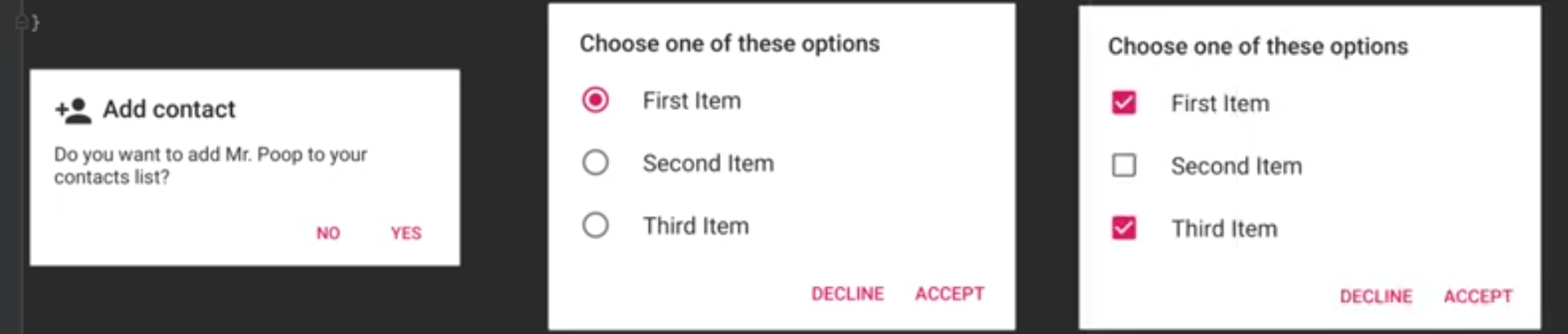
Don’t be suprised that we don’t have to create an XML file. Ya you heard it right. It also shocked me when I heard for the first time.
Lets write code of each Alert box.
First Dialog
Lets see what do we need to write in our code.
YourActivity/Fragment.kt
val builder = AlertDialog.Builder(this@StoryDetailActivity)
builder.setMessage("Are you sure you want to Delete?")
      .setCancelable(false)
      .setPositiveButton("Yes") { dialog, id ->
            Toast.makeText(context, "Story deleted successfully.", Toast.LENGTH_SHORT).show()
      }
      .setNegativeButton("No") { dialog, id ->
            // Dismiss the dialog
            dialog.dismiss()
      }
      val alert = builder.create()
      alert.show()
}
Simple right.
Second
Third
I will do the second and third one later. Keep in touch.
You can also use XML to create your custome alert dialog.
<?xml version="1.0" encoding="utf-8"?>
<LinearLayout xmlns:android="http://schemas.android.com/apk/res/android"
        android:orientation="vertical"
        android:layout_width="400dp"
        android:layout_height="300dp"
        android:padding="16dp"
        android:background="@color/white"
        android:layout_gravity="center">
    <LinearLayout
            android:weightSum="1"
            android:layout_width="match_parent"
            android:layout_height="wrap_content"
            >
        <TextView
                android:layout_weight="0.1"
                android:textSize="20sp"
                android:textStyle="bold"
                android:textColor="@color/black"
                android:text="@string/your_name"
                android:layout_width="match_parent"
                android:layout_height="wrap_content"
                />
        <ImageButton
                android:id="@+id/btnCloseDialog"
                android:layout_weight="0.9"
                android:src="@android:drawable/ic_delete"
                android:background="@android:color/transparent"
                android:layout_width="match_parent"
                android:layout_height="wrap_content"
                />
    </LinearLayout>
    <EditText
            android:id="@+id/etName"
            android:layout_width="match_parent"
            android:layout_height="wrap_content"
            android:textSize="@dimen/default_font_size"
            android:hint="@string/name"/>
    <Button
            android:id="@+id/btnAdd"
            android:text="@string/add"
            android:layout_width="match_parent"
            android:layout_height="wrap_content"/>
</LinearLayout>
val builder: AlertDialog.Builder = AlertDialog.Builder(this)
val inflate: LayoutInflater = layoutInflater
val view: View = inflate.inflate(R.layout.popup_add_name, null)
// to get all id
val etName = view.findViewById<EditText>(R.id.etName)
val btnCloseDialog = view.findViewById<ImageButton>(R.id.btnCloseDialog)
val btnAdd = view.findViewById<Button>(R.id.btnAdd)
builder.setView(view)
val dialog: Dialog = builder.create()
dialog.show()
btnCloseDialog.setOnClickListener {
dialog.dismiss()
}
btnAdd.setOnClickListener {
if (etName.text.isNullOrEmpty()) {
Toast(this, "Name field is empty", Toast.LENGTH_SHORT).show()
} else {
// submit form
dialog.dismiss()
}
}So, your custome Alert Dialog box is ready to use.